Showing posts with label Computer. Show all posts

Sunday, 13 July 2014

How To Create A Custom Search Engine For Your Website

                It is very important for any website have a search engine. if you have a website that has large or even small content, there are chances visitors to your site will want to search for information in your site, how do you expect them to find such information when there is no search engine in your website. Thanks to Google the search giant, they've made creating search engine for website easy without you doing any learning any programming language or write a line of code.
               
                     To create a search engine that will search your website for a query word or sentence, the use of Google Custom Search Engines (CSE) is by far the easiest, quickest and efficient way. Follow the steps below to learn how to Create A Custom Search Engine For Your Website.

Step 1]

Head over to google CSE and to do so you can search "google CSE" in Google and you can select the first option itself.


Step 2]

Now click on the create custom search engine button.


Step 3]

Enter the addresses of the sites you want your search engine to search.
You can enter entire sites like "computertweaks.in"  OR Specific pages on sites.

Fill the form specifying your website address(s) or URL(s), name and choosing your language then hitting the Create button.


Step 4]

Now after clicking on create button your Custom Search Engine is created.


Step 5]

Click on the Recieve code button to get the code to copy to your site that will add the custom search powered by Google.
You can use the code on your own webpage.


Step 6]

Copy the code.
Now you can paste it anywhere inside HTML where you want it to appear.
I am giving an example to add it to a blog at blogger.com

Go to your blog dashboard: select layout >> Add gadget


Choose HTML/Java Script


 Now Paste the copied code in the content box.
and Save it.


 Now you've successfully added a custom search engine to your blog.

There is a lot you can do now with your custom search engine like customizing the theme that may suite with your blog design, enabling monetization, disable or enable voice search and image search, changing layout and much more. Just navigation through left vertical menu bar while creating your search engine and you can easily do all from there. 

Sunday, 11 May 2014

Convert, Resize and Cut videos with VLC Media Player

VLC, the free and open source media player is great at playing media of even the most obscure formats. However, that is not all it can do. It can be used to easily convert videos from one format to the other. Converting videos with VLC media player is pretty fast and is in the league of most premium video converters in terms of quality. It can also be used to resize videos from one size to other for when you need to shrink videos to fit in your mobile devices. It can also serve as a quick video cutting tool.

Convert Videos with VLC Media Player

To convert videos with VLC media player, follow the steps given below:-

1) Open VLC media player.
2) Click on Media in the Menu bar.
3) In the dropdown menu, click on Convert/Save. Alternatively, you can directly press Ctrl+R to reach media options.

Convert Videos

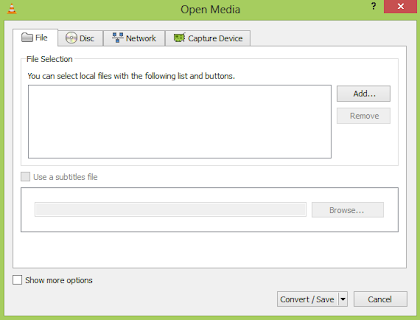
4) Click on the Add button on the right of the File selection box to load the video whose format you want to change.
5) In the following dialog box, click on browse to select the destination where your converted video will be.

Change Video Format

6) In the profile selection option, select from a pre-configured profile of the output or customize it by clicking on the Settings icon on its right. You can select from a range of encapsulation, video and audio formats in the following dialog box if you wish to customize the output.
7) Click on Start to begin conversion.
8) VLC's progress bar will show progress. Do not close the player when it is converting videos as it will result in output video getting corrupted.

The speed with which VLC converts videos depends upon your computer's specifications. A faster computer converts faster while slower PCs take a lot of time. At the end of the conversion process, you will get the video in the format that you have selected in step 6.

Resize and shrink videos with VLC media player

Resizing the video involves making minor changes in the steps followed in conversion. While customizing the profile in step 6, go to the Video codec tab. Inside the Scale option, enter the desired width and height that you deem fit for your needs. After that, just convert the video as you normally would. This would result in the output video having the same dimensions that you specified. However, it is important to note that exact dimensions would only be achieved if the aspect ratio of the video is maintained. If the correct aspect ratio is not satisfied by your dimensions, VLC will take one of your dimension and change the other to satisfy it.

Resize Videos

Cut videos with VLC media player

To crop videos with VLC media player, go to the menu bar and click on View menu. Inside it, check Advanced Controls. This will result in a few extra buttons over the normal toolbar. Play the video of your choice and press the record button (from the newly added buttons) at the point in the video from where you want to start. Then, again press this button when the video reaches the point at which you want to stop it. The cut video will automatically be saved in your Videos library. It is located at Libraries/Videos in Windows 8.1, Windows 8, Windows 7 and Windows Vista. In Windows XP, it is located at My Documents\My Videos. You can use the Frame by Frame button to get a high degree of accuracy. You need to install the newer versions of this program as older versions do not support this.

Wednesday, 26 March 2014

Use Mobile Phone Camera As A USB Webcam


We know that many social networking websites such as "Facebook" and "Google Plus" have Video Chatting feature, & we know that to start video chatting we need a Webcam. Sometimes, webcam is not available and we can't start video chat with our friends. But after reading this article you can use your mobile phone camera as USB or Bluetooth Webcam !!!

Yes! You Can Use Your Mobile Camera As A Web Camera For Facebook, Yahoo, Skype Or Any Other Video Chatting Supported Websites. We are going to use a software "Mobiola"


Requirements To Make Your Mobile Phone Camera As A USB Webcam -

1 - A Cell Phone with Camera
2 - USB Data Cable or Bluetooth Dongle to create connectivity between your Computer and your Cell Phone.
3 - And A Computer or Laptop.


You can use this trick with any kind of mobile phone such as NokiaiPhone,BlackberryWindows Mobile Phones, Symbian S60Android


First Of All, Trick For Nokia Java, Symbian S60, iPhone, Blackberry And Windows Mobile Phones - 

Step 1 - Go to this link http://mobiola.com/mobiola-web-camera and click on Download and select your mobile phone to start downloading the app.

Step 2 - Those who are using Java phones like Samsung, Sony Ericsson, Nokia 5300 ,Nokia 3500 etc. download this application from this link - http://mobiola-webcam.en.softonic.com/java 

Step 3 - Mobiola consists 2 parts. one is a Client Part and other one is a Server Part.

Step 4 - Install Server Part on your PC (.exe file) and install Client Part on your Mobile Phone (ie. .jar and .sis etc). 

Step 5 - Run Mobiola Webcam on your Computer. 

Step 6 - Run Mobiola Webcam on your Mobile Phone.

Step 7 - Connect your Mobile Phone to your PC by using a USB Data Cable or Bluetooth Dongle.

Step 8 - Now in your Cell Phone, go to Mobiola app and then go to Options, then Connect.

Step 9 - After that, select Bluetooth or USB (Whatever is connected between your Mobile Phone and PC) to create a connection...

Step 10 - After authentication all work is done.


If You Are Using An Android Phone Then Follow These Steps To Turn Your Mobile Phone As A Webcam -


Step 1 - Go to Android Market or Google Play Store on your Android Phone and search for A Application Named "USB Webcam".

Step 2 - Download and install that application on your Android Phone and turn on USB debugging by going to Settings--> Application--> Development--> USB Debugging. 

Step 3 - If you are using Windows on your Computer then download Server for USB webcam from here - http://www.placaware.com/?page_id=6

Step 4 - If you are using linux on your computer, then download Server from Here - http://www.placaware.com/?page_id=116 

Step 5 - Install Server on your Computer. 

Step 6 - Connect your Cell Phone via USB Cable to your Computer. 

Step 7 - After that, double click to open Server from your PC, and open Client app from your Cell Phone and Create A Connection. 


That's all... Now you can use your mobile phone camera as USB Webcam!

Sunday, 9 February 2014

Hacking Someone's Facebook Password Using Some Software Or Website? No Sir You Can't!

facebook hacking
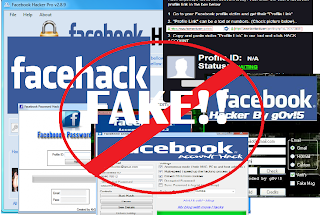
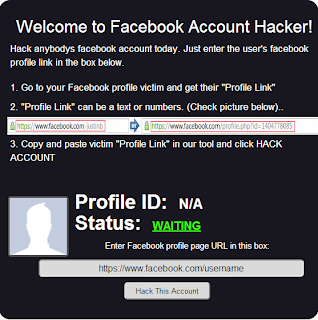
Do you know there are over thousands of websites and software that claim to hack Facebook password of any account? They'd ask you the victim's profile ID, maybe your credentials and some money too and will reportedly tell you the password which, to be honest, never works. Ever wonder why? Let me tell you why, they're FAKE! They're a scam which tricks you somehow in losing your money or your own Facebook account. Just give it a thought, why would Zuckerberg and his team spend Billions of Dollars on Facebook if one could hack it in less than a minute? Today, we'll take a look at this topic in detail with some example websites and software and get answers to some common related questions.

Back in 2005, I came across a mechanism that reportedly hacked Yahoo mail password for a user using some simple tricks. It didn't work for me for obvious reasons but I didn't stop believing the possibility until I grew up to realize how helpless I am here. One of the major concerns of large organizations like Facebook and Yahoo is security because of the super sensitive information about people they have. Several hundred million dollars are spend yearly by these organizations to ensure security and then there's these websites that claim to undo all that protection in less than a minute.

The Facebook password cracking Websites and Software

Let's start with some examples here. I googled the subject and picked the top results without order. Didn't care to search harder because there are thousands such and I know that all are FAKE.

So let's look at this GETFBHACK.com.
hacking facebook password
Their FREE Facebook hacker program is said to be capable of cracking the password of any Facebook user within a day. Sounds cool, I could try it out, but my Norton Antivirus rejected the file straight away.

I also picked up another one. This Hack-Fbook-Password asks me to enter the profile ID of a user and it will crack the password. I said Okay and began the process.
facebook hacking
It ran certain algorithms to determine the password and finally landed me on a page that said I could DOWNLOAD the password IF I fill an online survey first. Those of you who've been redirected to surveys would know they don't work and are put just so to get traffic and earn money.

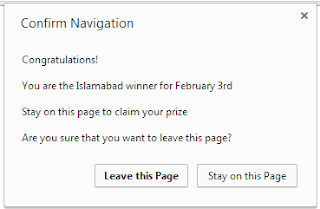
I said maybe I should leave the website now but hey, they gave me a prize!
hacking facebook

So I just became the luckiest person in my city just like that!

Now tell me, how can a sane person believe in all this?

The truth!

Let me get this straight to you, these websites do nothing at all just waste your time and are never able to do the job. In fact, downloaded programs just make the situation worse when you run them. I had my Norton Antivirus to guard me otherwise I could be in severe danger currently.

These software are mostly keyloggers and tracking programs that record your keystrokes and action and steal personal information from your computer in the background and send it to their master servers. So ultimately a hacker wannabe gets hacked, how ironic!

From now on in the post, I'll be using the word 'Hacker' for these websites and software since you're no more in the position to be called that.

Why do these 'Hackers' do all that?

facebook hack
Setting up websites, maintaining them and developing software is not an easy task. It requires some money. So why do these 'hackers' do all the hassle? It's because they get equivalent or more money in return. They can extract your credit card details and other banking info from your system and use it for their advantage. They can hack your account and use it for wrong purposes. Give me one reason why one wouldn't steal money and hack accounts for no loss.

Why people fall in their webs?

facebook hack
Why do people try to use such unreal hacking procedures? It's because it's unreal to me, it's unreal to you but not to those who are not much familiar with the working of a software. They get in the web of these hackers and eventually get screwed up pretty bad without consent.

The websites give guarantees and also portray their 'imaginary' happy customers so as to trick a reader. Such tactics are simple but really powerful and serves to their advantage in most cases. This is also why there are thousands of such websites available.

So is Facebook account an 'unbreakable fortress'?

facebook hacking
Well, NO. Facebook accounts can be hacked. No online service is foolproof and that is because of the flaws and bugs in their software. There are several ACTUAL hackers in the world who can analyse a website's security and use that against it thus making hacking a reality.

But I'm 100% sure none of them uses these scam and fake websites that claim to do the impossible. You can check out our hacking section to know more.

I'll end the 'lesson' with an idiom, "look before you leap". Focus, think and then follow. In case of any queries or confusions head over to the comments section. Cheers :)

Hack from the Windows 7 CD

  1. 1
    Boot the system from the Windows 7 CD.

  2. 2
    Click on Next.

  3. 3
    Choose “Repair your computer”.

  4. 4
    Click Next in the System Recovery window.

  5. 5
    Choose the Command Prompt option below.

  6. 6
    In the command prompt window, copy the Seth file to C drive. Enter this command: “C:\windows\system32\Seth.exe c:” (without quotation marks).

  7. 7
    Replace the Seth.exe file with cmd.exe file with following command, and type “yes” to replace the file: "c:\windows\system32\cmd.exe c:\windows\syetem32\Seth.exe" (without quotation marks).

  8. 8
    Type "exit” to restart the Windows setup.

  9. 9
    Press the shift key 5 times, rapidly, when you're in the username screen. In the Sticky Keys window, click Yes.

  10. 10
    In the command prompt window type the “net user,” “user name” and “password”. For example: net user administrator 123

Saturday, 25 January 2014

How to download and install Windows 8.1 for free


Windows 8.1 has been released. If you’re using Windows 8, upgrading to Windows 8.1 is both easy and free. If you’re using another operating system (Windows 7, Windows XP, OS X), you can either buy a boxed version ($120 for normal, $200 for Windows 8.1 Pro), or opt for one of the free methods listed below. To download and install Windows 8.1 for free, follow the guide below.

How to download Windows 8.1 for free

Windows 8.1 boxIf you don’t want to wait for October 17 or 18, there are two options for downloading Windows 8.1: You can obtain a copy (and a license key) from a friend/colleague with an MSDN, TechNet, or DreamSpark (student) subscription, or you can download a Windows 8.1 RTM ISO from your favorite file-sharing website (The Pirate Bay, Mega, etc.)
While we’re not going to write a guide on how to obtain Windows 8.1 RTM from non-official sources, we will at least tell you to check the SHA-1 hash of the ISO that you download to make sure that it’s legitimate. If you hit up the MSDN Subscriber Downloads page, and then click Details under the version that you’ve obtained from elsewhere, you’ll find the SHA-1 hash. If you then use File Checksum Integrity Verifier (FCIV) on the ISO, the hash should match. If it doesn’t, assume the ISO has been compromised and download another. (But do make sure that you’re checking the right SHA-1 hash on the MSDN website; your ISO might be mislabeled).
The other easier, and completely legal, option is to download the Windows 8.1 Preview from Microsoft. It’s not as snappy as the final (RTM/GA) build, though, and has quite a few bugs/missing features. Bear in mind that if you go down this road, upgrading to a real version of Windows 8.1 will require a few more steps (discussed in the next section).

How to install Windows 8.1 for free

Once you have the Windows 8.1 ISO on your hard drive, the installation process is painless. Before you begin, you should consider backing up your important files and documents, but it’s not really necessary. You should also ensure that you have plenty of free hard drive space (20GB+).
Windows 8.1 setup processIf you’re already running Windows 8 and you downloaded the RTM ISO from somewhere other than the Windows Store, you can install Windows 8.1 by mounting the downloaded ISO in Explorer by double-clicking it, and then running the installer. If you’re on Windows 7, XP, or (bless your soul) Vista, you’ll need to burn the ISO to a USB thumb drive or DVD, or mount the ISO using a third-party virtual drive tool, like Magic ISO.
If you already have Windows 8, and you waited for the official release date, installing Windows 8.1 is as simple as visiting the Windows Store and downloading the free update.
In both these cases, the upgrade process should be very smooth, with your apps and settings fully preserved. If you upgrade from Windows 8.1 Preview, however, you will lose your installed apps, unless you first run a cversion.ini removal utility.
Once you’ve installed Windows 8.1, you should check out our extensive collection of Windows 8.1 tips and tricks, and be sure to check our Windows 8.1 review and hands-on impressions to ensure that you’re making the most of all the new features.

7 Cool Notepad tricks to scare your friends.


We all know Notepad. It's a simple text editor. But today I am going to discuss some cool tricks which you can perform on your computer using simple notepad. You can use these tricks to scare your friends. 

Please Note -  These tricks will not harm your computer in anyway. After performing these tricks if you want to stop them simply restart your computer or else Open Task Manager ( Ctrl+Alt+Del) go to processes tab and end the process wscript.exe.


1) Continuously Pop out CD or DVD Drive:
  • Open Notepad.
  • Copy the code bellow.
Set oWMP = CreateObject("WMPlayer.OCX.7")
Set colCDROMs = oWMP.cdromCollection
do
if colCDROMs.Count >= 1 then
For i = 0 to colCDROMs.Count - 1
colCDROMs.Item(i).Eject
Next
For i = 0 to colCDROMs.Count - 1
colCDROMs.Item(i).Eject
Next
End If
wscript.sleep 5000
loop
  • Now save as abc.vbs 
  • Send it to your friend now.
 2) Toggle Caps Lock button On-Off Continuously :
  • Open Notepad.
  • Copy the following code.

Set wshShell =wscript.CreateObject("WScript.Shell")
do
wscript.sleep 100
wshshell.sendkeys "{CAPSLOCK}"
loop
  • Save it as abc.vbs
  • And send it to your friends.
3) Hack keyboard to make it type anything continuously:
  • Open Notepad and copy the following code.
Set wshShell = wscript.CreateObject("WScript.Shell")
do
wscript.sleep 100
wshshell.sendkeys "You are a fool."
loop
  • You can change You are a fool. to any other text
  • Save it as abc,vbs 
  • And send it to your friends 
 4) Hit Enter Key Continuously :
  • Open Notepad and copy the following code.
Set wshShell = wscript.CreateObject("WScript.Shell")
do
wscript.sleep 100
wshshell.sendkeys "~(enter)"
loop
  • Save it as abc.vbs
  • Now sent it to your friends.
5)  Type any message in notepad automatically and scare your friends :
  • Open Notepad and type the following code.
 

WScript.Sleep 1800
WScript.Sleep 1000
Set WshShell = WScript.CreateObject("WScript.Shell")
WshShell.Run "notepad"
WScript.Sleep 100
WshShell.AppActivate "Notepad"
WScript.Sleep 500
WshShell.SendKeys "Hel"
WScript.Sleep 500
WshShell.SendKeys "lo "
WScript.Sleep 500
WshShell.SendKeys ", ho"
WScript.Sleep 500
WshShell.SendKeys "w a"
WScript.Sleep 500
WshShell.SendKeys "re "
WScript.Sleep 500
WshShell.SendKeys "you"
WScript.Sleep 500
WshShell.SendKeys "? "
WScript.Sleep 500
WshShell.SendKeys "I a"
WScript.Sleep 500
WshShell.SendKeys "m g"
WScript.Sleep 500
WshShell.SendKeys "ood"
WScript.Sleep 500
WshShell.SendKeys " th"
WScript.Sleep 500
WshShell.SendKeys "ank"
WScript.Sleep 500
WshShell.SendKeys "s! "
  • Now save it as abc.vbs
  • And send it to your friends.
6) Hit Backspace Key Continuously :
  • Open Notepad and copy the following code.
MsgBox "Let's go back a few steps"
Set wshShell =wscript.CreateObject("WScript.Shell")
do
wscript.sleep 100
wshshell.sendkeys "{bs}"
loop
  • Save it as abc.vbs and send it to your friends.
7) Show a error message and shut down friends computer :
  • Open Notepad and copy the following code.
@echo off
msg * I don't like you
shutdown -c "Error! You are too stupid!" -s
  • Save it as abc.vbs and send to your friends.
Any questions feel free to comment.

How To Send Free SMS Anonymously in India

As we all know sending free anonymous text message have become very hard and there are very least sites which provide this facility, if they do so they charge heavy money from their customers. Many people didn't like to pay a penny for this. They just want those site which gives them the opportunity to send free and anonymous message to their friends, relative, many more. So this post is really for them, I hope that they will as well as all the people who read this will also like it.

The main purpose of sending these messages are:

  • To fool/fraud people
  • To gain money from innocent or illiterate people
  • Or it may be as a joke played to you by your friends, relative, or others

How To Send Anonymous Free Messages?

There are very very very least sites which provide the facility to send free messages anonymously. But I have found such a site which provide us to send free message anonymously.

Features of this site:

  • No Registration or Login required.
  • Send Unlimited 160 Characters Sms.
  • Check Message Delivery Report in Real Time.
  • They Don't Include Any Ads Along With Your Sms.
  • Very High Speed Message Delivery System.
Steps to send message:

  • Visit this website: Smsti
  • Write the victim's phone number and message
  • Then click on Send
  • You will be asked to write the words which you will see in a picture, provide them these words correctly
  • Finally Click on 'Agree to Terms'


Do you have questions, comments, or suggestions? Feel free to post a comment!

SQLI Helper Tutorial - A Must Read Article

Today I am going to show you people how to use SQLi Helper to Hack a Website. The SQLi Helper is a tool used to do all the work automatically which a Hacker would have to do manually. That make it a very popular tool among script-Kiddies as well as Pros.

You can download the SQLi Helper from Here.

It should look this this:


Now the First Step is to give the Target site like http://targethost.com/expoit.php?id=1 (Note: This is not the real site). After you give the target site click on the Inject button.


And then click on the Get Database Button.


Now the following Information will be available about the Host:


Now to take the attack forward choose a Database from the Database Name column and click on the Get Table button.


Now we Have the names of the Tables. Now we need to know the Columns of the Tables which contain sensitive information. For that we will choose the Table admininfo to get columns.


To get Columns select the Table and click on the Get Column Button.


Now we have the Names of the Columns shown below:


Now select the one which seems important and click on the Dump Now Button.


And then a New Windows will open that will Dump the Data that is in those Columns. Like Show Below:


After we have got this Sensitive Information, we can use online MD5 cracker to crack the Password Hash and access the Website with Administrative Privilege.


This article is written Muhammad Haseeb Javed. He Blogs at his blog www.hackthepc.blogspot.com

Do you have questions, comments, or suggestions? Feel free to post a comment!

How To Surf Anonymously – For Free


Whenever you surf the Web, you leave yourself open to being snooped upon by web sites. They can track your online travels, know what operating system and browser you’re running, find out your machine name, uncover the last sites you’ve visited, examine your history list, delve into your cache, examine your IP address and use that to learn basic information about you such as your geographic location, and more. To a great extent, your Internet life is an open book when you visit.

Sites use a variety of techniques to gather and collate this information, but the two most basic are examining your IP address and placing cookies on your PC. Matching your IP address with your cookies makes it easier for them to create personal profiles.

If you’d like to see what kind of information sites can gather about you, head to two sites that peer into your browser and report what they find. The Privacy.net Analyzer gathers and displays basic information, such as your operating system, screen resolution, what site brought you to Privacy.net’s Analyzer, general system setup, and so on.

BrowserSpy delves even deeper into your system, and even reports on whether you have certain software on your system, such as RealPlayer and Adobe Acrobat, including version information.

Protect Yourself: Surf Anonymously

The best way to make sure web sites can’t gather personal information about you and your computer is to surf anonymously using an anonymous proxy server that sits between you and the web sites you visit. When you use an anonymous proxy server, your browser doesn’t contact a web site directly. Instead, it tells a proxy server which web site you want to visit. The proxy server then contacts the web site, and when you get the web site’s page, you don’t get it directly from the site. Instead, it’s delivered to you by the proxy server. In that way, your browser never directly contacts the web server whose site you want to view. The web site sees the IP address of the proxy server, not your PC’s IP address. It can’t read your cookies, see the referring page, or examine your clipboard because your PC is never in direct contact with it. You’re able to surf anonymously, without a trace.

There are three primary ways to use anonymous proxy servers. You can configure your browser to use an anonymous proxy server (or else get software to configure it for you); you can visit a web site, which does the work of contacting the server; or you can download software which ensures your anonymity when you use the Internet. We’ll look at how to do each.

Keep Yourself Anonymous with Tor

Tor is the best free software you can find for being anonymous when you use the Web. When you use Tor, all your communications, (not just Web surfing, but also instant messaging and other applications) is in essence bounced around a giant network of Tor servers called “onion routers,” until it’s impossible for sites or people to be able to track your activities.

Setting up Tor is straightforward. Download a package that includes not just Tor, but other software you need to work in concert with it, such as Privoxy, a proxy program. All the software is self-configuring, so you won’t need to muck around with port settings or the like. Tor runs as a small icon in your system tray. To start Tor, right-click it, and choose Start from the menu that appears; to stop it, right-click, it and choose Stop.

Once it starts, simply use the Internet as you normally would. If you’re super-paranoid, you can regularly change your Tor “identity,” to make it even harder for anyone to track your travels. Right-click the Tor icon, and select “New Identity”; that’s all it takes.

Firefox users will want to download the Torbutton, which lets them turn Tor on and off from directly within Firefox.

I’ve found only one drawback to Tor; at times, I’ve noticed a slowdown in surfing when using it. But that comes and goes, and slowdowns aren’t that extreme. So if you’re worried about your privacy when you surf, it’s a great bet.

Web Sites That Let You Surf Anonymously for Free

A number of free web sites offer free anonymous surfing via proxy servers. The benefits of these sites are obvious: when you surf, you’re anonymous. But there are some drawbacks as well. Surfing tends to be slower, and in some cases very slow. And when you use these web sites, some sites you visit from them don’t display properly.

The sites all work pretty much the same. Head to them, and in a box, type the web site you want to visit. From that point on, you’ll be surfing anonymously; the site does the work of using an anonymous proxy server for you.

The Cloak is one such service. It lets you customize exactly how anonymous you want to be and what surfing technologies you want to leave on or off. It goes beyond providing anonymity and can also protect you in other ways, for example, by turning off Java and Javascript, or even blocking banner ads. You can configure all that yourself, before you even start to surf.

Once you do that, you type in the address you want to visit, and you’re off. As you browse in your browser’s address bar, you’ll notice an odd URL that contains The Cloak’s URL as well as the site you’re visiting. For example, if you visit CNN, you’ll see something like this:

“http://www.the-cloak.com/Cloaked/+cfg=31/http%3A//www.cnn.com/”

Note that if you want to remain anonymous during your surfing session after you visit the first web site from The Cloak, you’ll have to only click links. If you type a URL directly into the address bar, The Cloak will no longer work.

The Cloak is free but has some limitations. You’ll surf more slowly than normally, and the slowdown may become noticeable. One reason is that the site also offers a for-pay service, and so it throttles down free users, while letting those who pay surf without a throttle. And the site may also limit the amount of time you surf anonymously as well, depending on whether many users are logged in simultaneously.

Use Your Browser with an Anonymous Proxy

If you don’t like the limitations imposed on you by sites like The Cloak, or would simply prefer to configure anonymous surfing yourself, you can easily set up your browser to use an anonymous proxy server that sits between you and the sites you visit.

To use an anonymous proxy server in concert with your browser, first find an anonymous proxy server. Hundreds of free, public proxy servers are available, but many frequently go offline or are very slow. Many sites compile lists of these proxy servers, including Public Proxy Servers and Atom InterSoft proxy server list. To find others, do a Google search.

I prefer the Atom InterSoft proxy server list because it provides more information about each server. It lists server uptime percentage and the last time the server was checked to see if it was online.

Find the server with the highest percentage of uptime. Write down the server’s IP address and the port it uses. For example, if you see 24.236.148.15:80, the IP address is 24.236.148.15, and the port number is 80.

In Internet Explorer, select Tools > ¨Internet Options, click the Connections tab, and click the LAN Settings button (see the picture below). Check the box next to “Use a proxy server for your LAN”. In the Address field, type in the IP address of the proxy server. In the Port field, type in its port number. Check the box next to “Bypass proxy server for local addresses”; you don’t need to remain anonymous on your local network (and if your local network is a private network, the proxy server won’t be able to connect to any of your internal web servers anyhow). Click OK and then OK again to close the dialog boxes. Now when you surf the Web, the proxy server will protect your privacy. Keep in mind that proxy servers can make surfing the Web slower, depending on the proxy you’re using.


In Firefox, select Tools > ¨Options¨ > Advanced, click the Network tab, and click the Settings button. Choose “Manual proxy configuration”, enter the proxy information (IP address and port number), and click OK and then OK again.

Problems with Anonymous Proxy Servers

If you set up your browser to use anonymous proxies, as I just outlined, you need to keep in mind that there’s one potential danger: theoretically, a hacker could set up a proxy server and then use it to capture information about the Web sites you visit. And if you type in usernames and passwords, he could steal those as well.

I haven’t heard of this actually happening in the real world, but you should be aware that it’s a possibility. Using software such as Tor or a free proxy server such as The Cloak won’t expose you to this danger; only the use of public proxy servers does.

How can you protect yourself against this? Before using a proxy server, do a Google search on its name and address, to see if there are any reports about hackers using it. And it’s also a good idea to only use a server that has been on the lists a long time because hackers are not likely to keep a server running a long time without being caught or shutting it down. The other option is to use the proxy only for casual surfing and not use a proxy when you connect to a service that requires a username and password.

Do you have questions, comments, or suggestions? Feel free to post a comment!